WIR Team Processes
Version: 1, effective date: 20-Jun-2022
Contents
1 Standard description
This document will define the details of Warehouse Inventory Repair overall process and give a overview of its steps and action points.
2 Document objectives and benefits
2.1 Objectives
Objectives of the document are:
-
Description of WIR processes
-
Defining the involvement of WIR
-
Increase transparency and predictability of process steps
-
Define control points and areas of responsibility
2.2 Benefits
The document is designed to share the overview of Warehouse Inventory Repair process with related colleagues and guide participants of the process.
3 Definitions
| Abbreviation / Term | Explanation |
|---|---|
| WIR | Warehouse Inventory Repair |
| TPM | Tracking Process Managar |
| DCTPM | Data Collector Tracking Process Managar |
Please refer to IT Glossary in the IT P&P portal for further definitions.
4 Daily PR Check Tool Update Process
This process consists of three main steps:
-
Extracting data from the PR Check Tool database
-
Creating a corresponding ITSP ticket for this task
-
Sending the extracted data to WL Team to get up-to-date data via the generated ITSP ticket
-
Uploading the received data via the ITSP ticket from WL Team to PR Check Tool
-
Closing the ITSP ticket
4.1 Extracting data to be sent to WL Team
Every morning, we need to take full inventory from the TPC database (tat-tpc-db-gva-prd.jti.com) at 08:20 AM (As Turkey Time 09:20) using MS SQL Server Management Studio.
Connection to the TPC database could be made using the configuration below:
- Server Name :
tat-tpc-db-gva-prd.jti.com - Authentication : Windows Authentication
After you connect to the TPC database, you can extract the full inventory data, all pallets, and MCs, with the query below via the PrimaryPalletReport table: - (exemplary excel file for the full inventory data: FullMarketAndFactoryCheck20220812)
--full inventory (markets / factories):

select ItemLocation, sscc, PackType

from TPC.dbo.PrimaryPalletReport

WHERE

isActive = 1

     and ItemLocation is not null

     and ItemLocation <> ''

order by PalletProductionDate, packtype
To extract the data for the Last24h file from the production of the factories, you need to run the query below via the same table: - (exemplary excel file for Last24h data: Last24hcheck202208012)
--last 24h:

select ItemLocation, sscc

from TPC.dbo.PrimaryPalletReport where Prstatus = 'New' --AND isActive = 1

     and ItemLocation in ('DEP1', 'ESP2', 'GRP1', 'PLP2OTP', 'PLP2RMC', 'ROP1', 'TRP1')

     and (PalletProductionDate > '2021-05-04 07:00:00' or PalletProductionDate is null)

order by PalletProductionDate desc
After extracting all the necessary data, you should put them into an excel file separately before to send the WL Team with proper structure.
4.2 Creating an ITSP ticket
To perform any task with the WL Team’s assistance, we need to create a corresponding ITSP ticket.
You can observe the incident INC4281582 as an example of the daily PR Check Tool’s PR and SR check ticket.
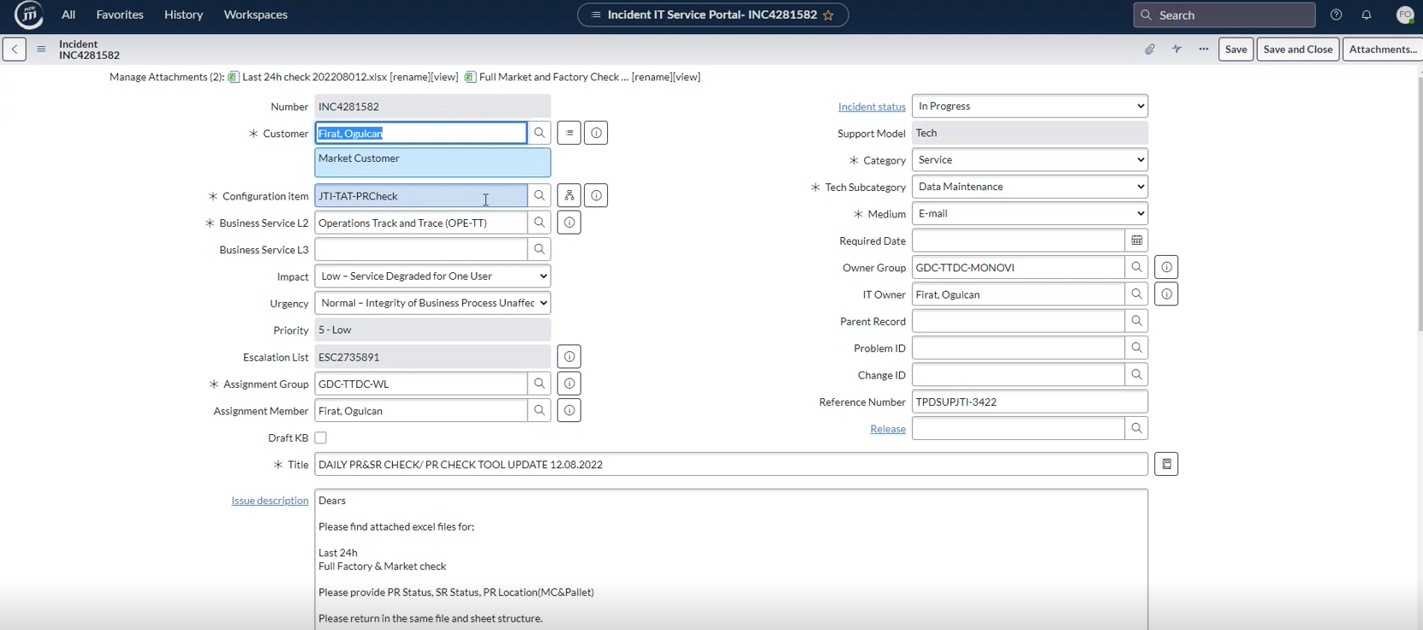
While creating this ticket, you should fill in the following textboxes with the information below:
-
Customer, Assignment Member, IT Owner: The name of the colleague who will perform the update
-
Configuration Item : JTI-TAT-PRCheck
-
Business Service L2: Operations Track and Trace (OPE-TT)
-
Impact: Low
-
Assignment Group: GDC-TTDC-WL
-
Owner Group: GDC-TTDC-MONOVI
-
Support Model: Tech
-
Category : Service
-
Tech Subcategory : Data Maintenance
-
Title : “DAILY PR&SR CHECK/ PR CHECK TOOL UPDATE 12.08.2022” (the date should belong to when you perform this task)
After creating an ITSP ticket successfully, the system will create a corresponding ticket on WL side.
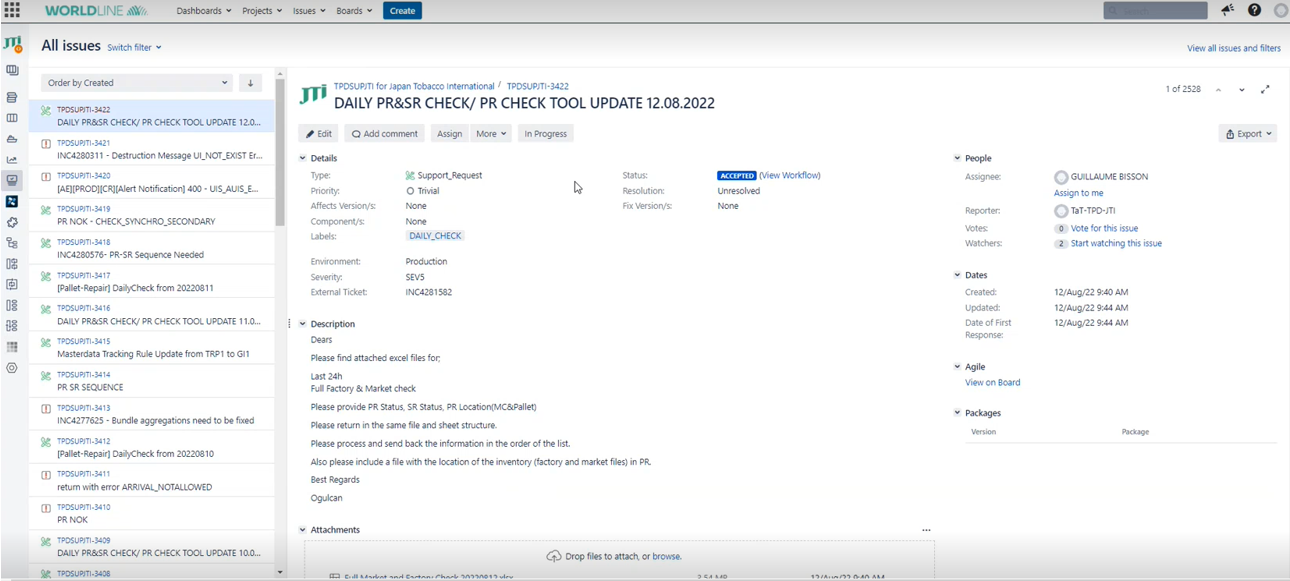
You need to attach the extracted data from the PR Check Tool database in this incident. When WL Team performs their own data extraction according to the given data by WIR Team, they will also upload the up-to-date data in this ticket.
4.3 Uploading the received data from WL Team
When WL Team processes the data and sends the updated version, you can find the results’ excel files in the daily created ITSP ticket. The naming for the files is the same each day, with the only difference as the date at the end of the file name.
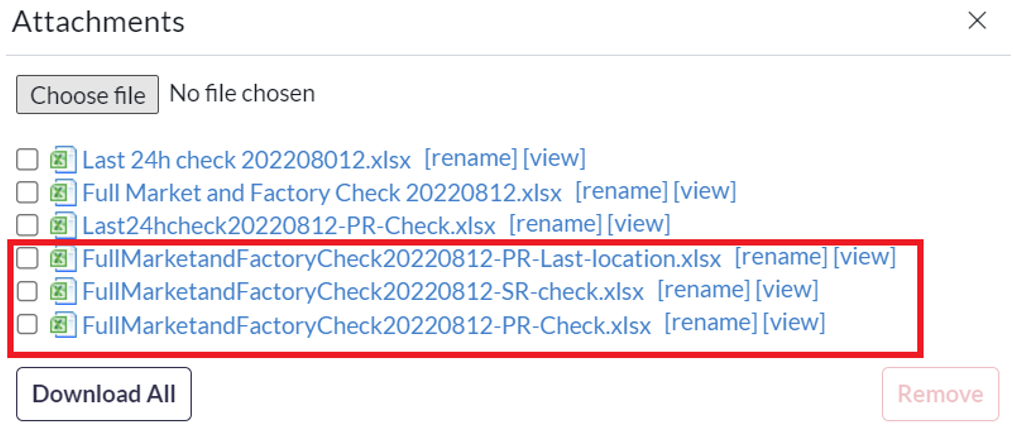
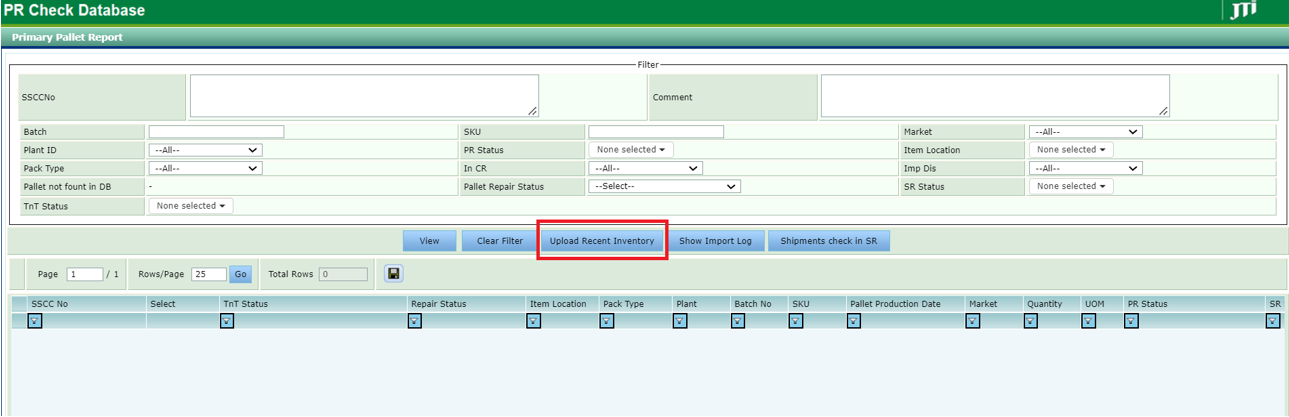
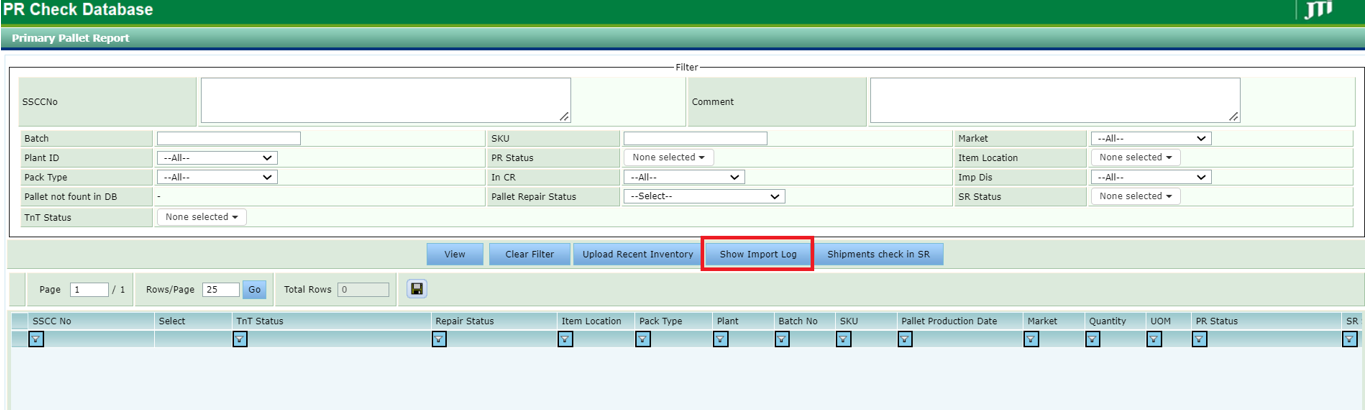
You can update the PR Check Tool via the “Upload Recent Inventory” button shown below to update the received data. Please make sure that you are connected to the JTI network via Pulse Secure connection to reach PR Check Tool.
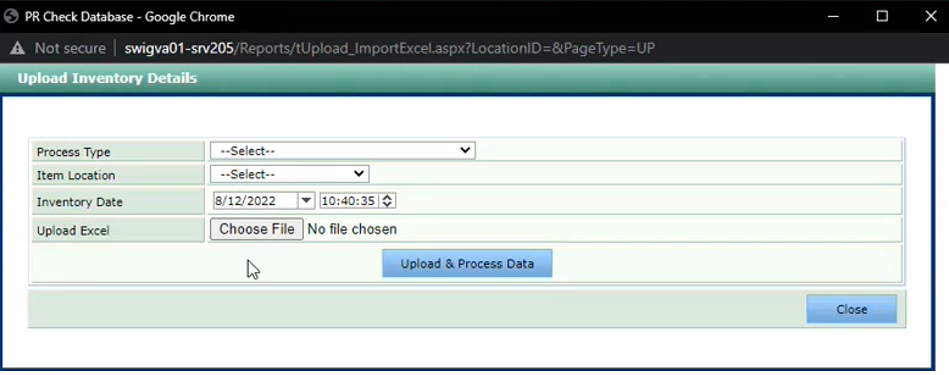
In the window below that pops up right after clicking “Upload Recent Inventory”, you should choose the process type accordingly before clicking the “Upload & Process Data” button to complete the uploading process.
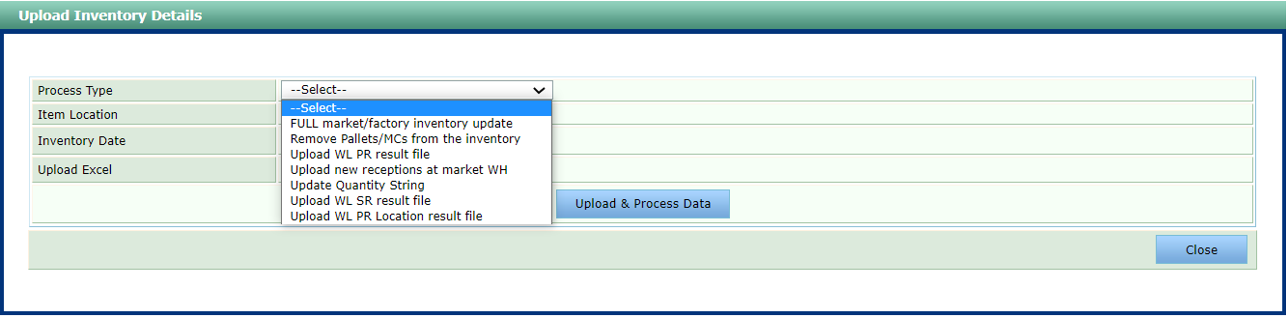
You should upload the files with the corresponding process type in the order below for the healthiest data update:
| File name (by upload order) | Process type |
|---|---|
| Last 24 Hour PR Check (e.g.: Last24hcheck20220812-PR-Check.xlsx) | Upload WL PR result file |
| WL PR result file (e.g.: FullMarketandFactoryCheck20220812-PR-Check) | Upload WL PR result file |
| WL SR result file (e.g.: FullMarketandFactoryCheck20220812-SR-check) | Upload WL SR result file |
| PR location result file (e.g.: FullMarketandFactoryCheck20220812-PR-Last-location) | Upload WL PR Location result file |
Due to the size of the files, the colleague who needs to upload the PR Check Tool needs to split the excel file into three to four separate ones before uploading to PR Check Tool. You should make sure to keep the structure of the excel file consistent.
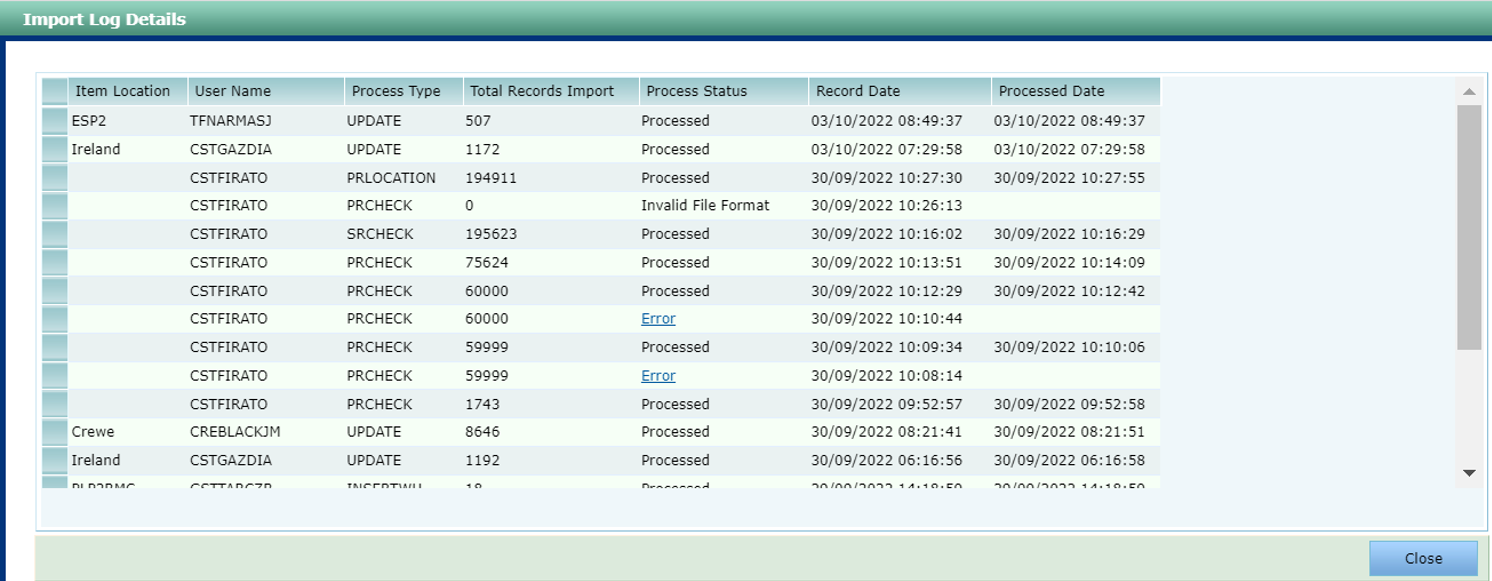
You can follow up on the upload progress via the “Show Import Log” option to ensure that the files are uploaded successfully with the process status of “Processed”. If the process status is “Error”, you can click on the status info to get more detail on why you could not upload your files.
If the process fails due to an error made in the excel file you are trying to upload, you should check the file you are uploading. If the error comes with the message “Execution Timeout Expired”, you should contact Satish Kumar Subramanian for assistance.
5 PR CHECK TOOL AUTOMATIC UPDATE PROCESS
There is a service called DCTPM that extracts the data of the produced pallets from the TPM and GLA database and automatically uploads these extracted data to the PR Check Tool a few times a day in three to four hour intervals. This way, when a new product is produced in a factory, the colleagues in the factory do not need to upload the product data into the PR Check Tool system. Still, the full inventory data is provided to PR Check Tool by all factories manually every morning.
Due to this automatic process, when WIR Team handles the daily PR Check Tool update, they can extract the up-to-date data in the morning to send WL Team for processing.
This process has been changed into an automatic system using Azure for some locations. There are a few options while performing this process:
-
With the specifically created table by warehouses, WIR Team extracts the data automatically
-
Warehouses can send the data via an excel or CSC file to WIR Team
-
Warehouses can send the data via an email
The data is uploaded via Azure pipelines automatically. WIR Team observes the system frequently and works on the configuration of the process. If the location has this automatic system configurated, they do not need to upload the inventory data every day manually. The built-in process gathers these data from the warehouse database and uploads them to PR Check Tool via specifically designed jobs.
It’s necessary to update the PR Check Tool daily by WIR Team to keep the data up to date.
Who does not need to update PR Check Tool
-
When a factory produces new pallets, the responsible colleagues in the factory do not need to upload this data to PR Check Tool. (DCTPM service handles this job on their behalf automatically)
-
Pallets that got produced in the warehouses do not need to be uploaded into the PR Check Tool.
-
Pallets in the locations that got shipped, received, etc., do not need to be uploaded into PR Check Tool.
6 PR Check Tool manual update process by factories and warehouses
6.1 Manual process
When a location needs to update its own product data without using DCTPM service, it can handle this process via the “Upload Recent Inventory” button in the PR Check Tool.
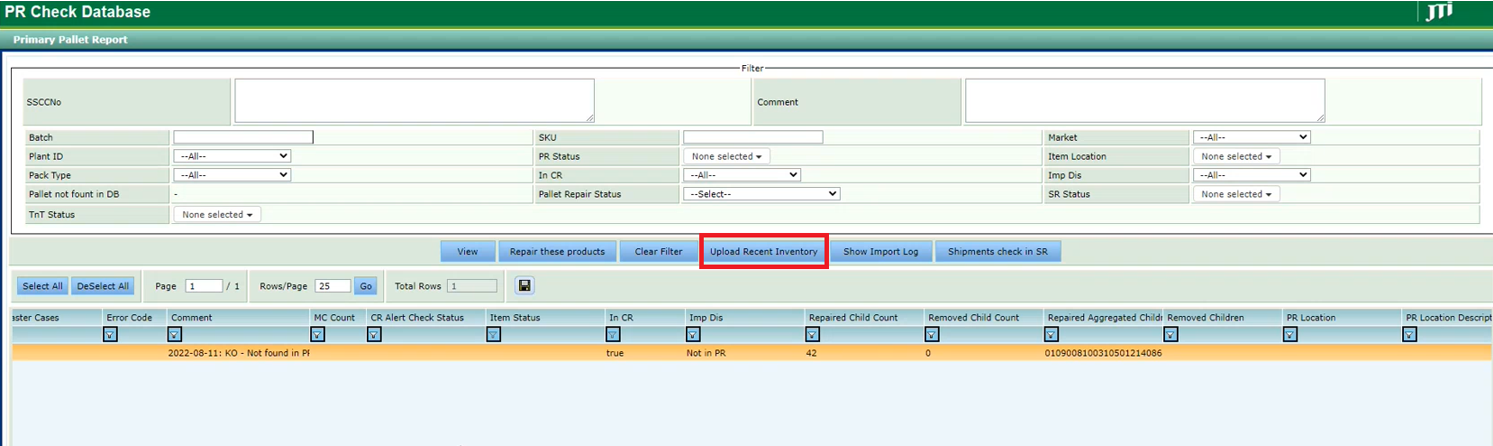
In the pop-up window shown below, the respective colleague should choose the “Item Location” and then upload the excel file to update the PR Check Tool manually.
6.2 By sending an excel file via an FTP server
This is another approach for uploading inventory data excel files by factories and warehouses to PR Check Tool without doing it manually.
This process is designed and handled by Sergey Chulkin.
WIR Team is only responsible for following up and guiding factories and warehouses on implementing this process when a location wants to upload its inventory data automatically this way. There are configurations to be made on the Azure side.
WIR Team can control if the process works or not in the previous day. Also, they can check if a location has this system built in. But they cannot change anything on Azure or SQL side.
When there is a need for a change or to include a new location in this process, WIR Team creates an incident and assigns it to Sergey Chulkin, with the “TrackTrace-ChangeConfigurationTable” excel template file filled properly. They collect the configuration data to fill the form from the responsible colleague in that location. Sergey Chulkin handles configuring the rest of the process. Here is an exemplary incident: INC3886823.
There are three ways to upload the data: E-mail, Sftp, and SQL.
The location can send an email, upload the excel file into Sftp, or create a new table in SQL and add their inventory.
Here are the SQL tables for handling this process:
-
Configuration and location data is stored in the “GSC_GLB_TrackTrace.Entity” table.
-
“GSC_GLB_TrackTrace.ExecutionLog” table is used to check if the process is working properly or not.
-
“GSC_GLB_TrackTraceFileFormatType” table is for checking the needed excel file format, which has many different options depending on the production and location. Business email recipients and date format info is also stored in this table.
-
“GSC_GLB_TrackTraceProductInventory” table is used to check the product inventory.
WIR Team cannot make any changes on the production server. But a QA version is available to provide a testing environment for WIR Team before sending the configuration info to Sergey Chulkin to configure it on the production environment.
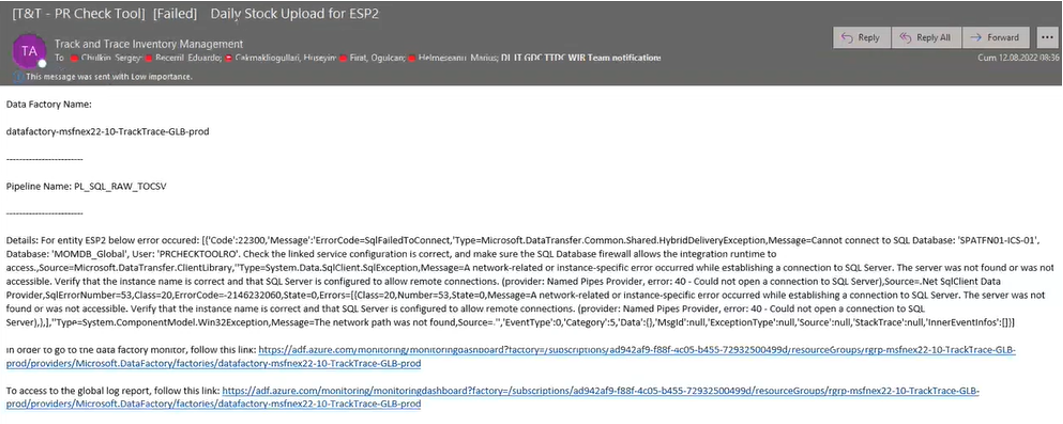
WIR Team gets informed via email on whether the automatic updating process works successfully or fails. Here is an exemplary failed job alert received by WIR Team:
7 Repairing process
7.1 Checking the products via PR Check Tool
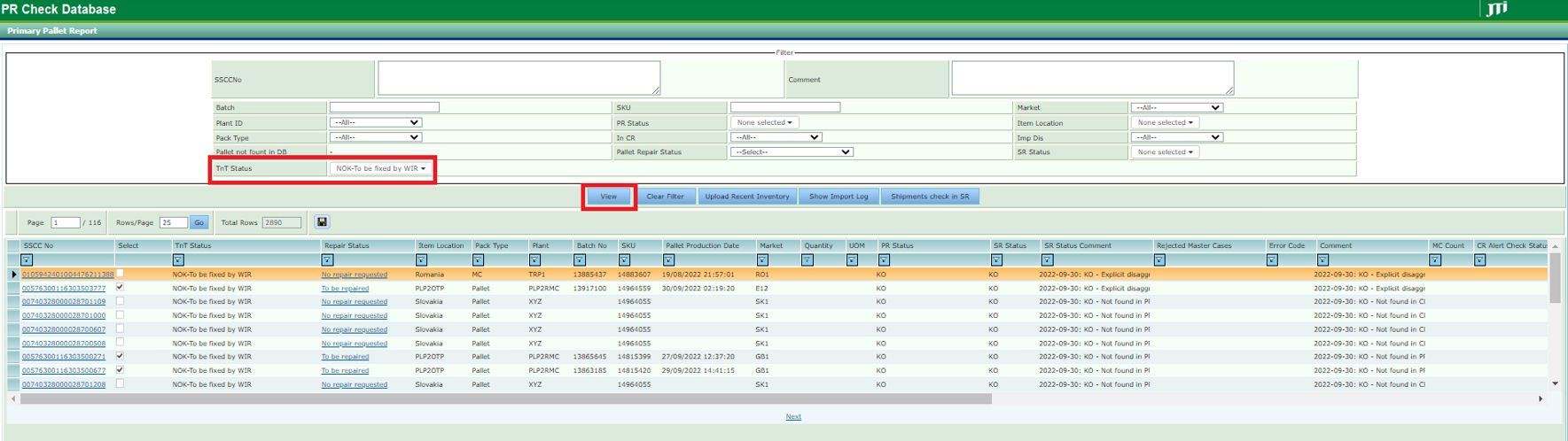
You can get assistance from PR Check Tool to check the TnT status for existing pallets and mastercases.
The statuses are classified as follows:
-
NOK-To be fixed by WIR
-
NOK-To be fixed by WIR (location)
-
NOK-To be fixed by WIR (SRReception)
-
NOK-Waiting status update for PR&SR
-
OK
-
OK-PRLocation missing
-
OK-Remove rejected MC/Bundles before using
After choosing the needed information according to pallets and mastercases status, you can click on the “View” button to get the results as in the screenshot below.
WIR Team works on repairing pallets that have the status of “NOK-To be fixed by WIR” and “NOK-To be fixed by WIR(location)”, and “NOK-To be fixed by WIR(SRReception)”.
7.2 WIR Team Power BI reports and routine analysis process
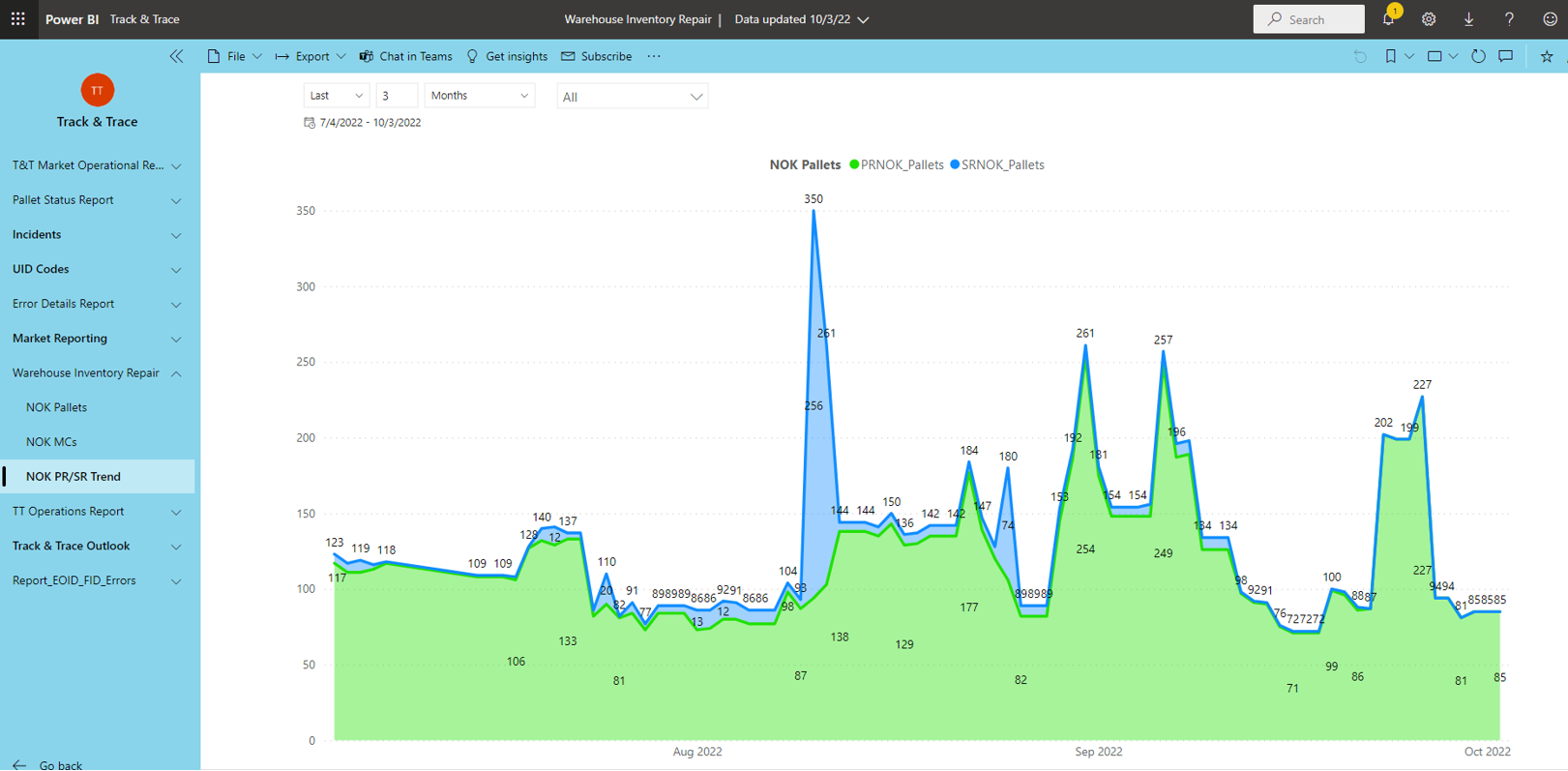
WIR Team checks the overall status reports via the BI reports here. These reports are generated by Alice Galoiu with Marius Helmeseanu as previous WIR Team responsible. In case of any demand on changing these reports, please contact responsible colleagues. WIR Team does not change the filters or create new tables on this Power BI report.
There are three main reports that WIR Team use:
At the NOK PR/SR trend report, the count should be below 100 for successful process. Otherwise, the situation gets reported to responsible colleagues and managers immediately via email. This is the main report followed by the WIR Team frequently to determine the pallets and mastercases that need repairing or reporting.
NOK MCs report that shows the overall status on mastercase level:
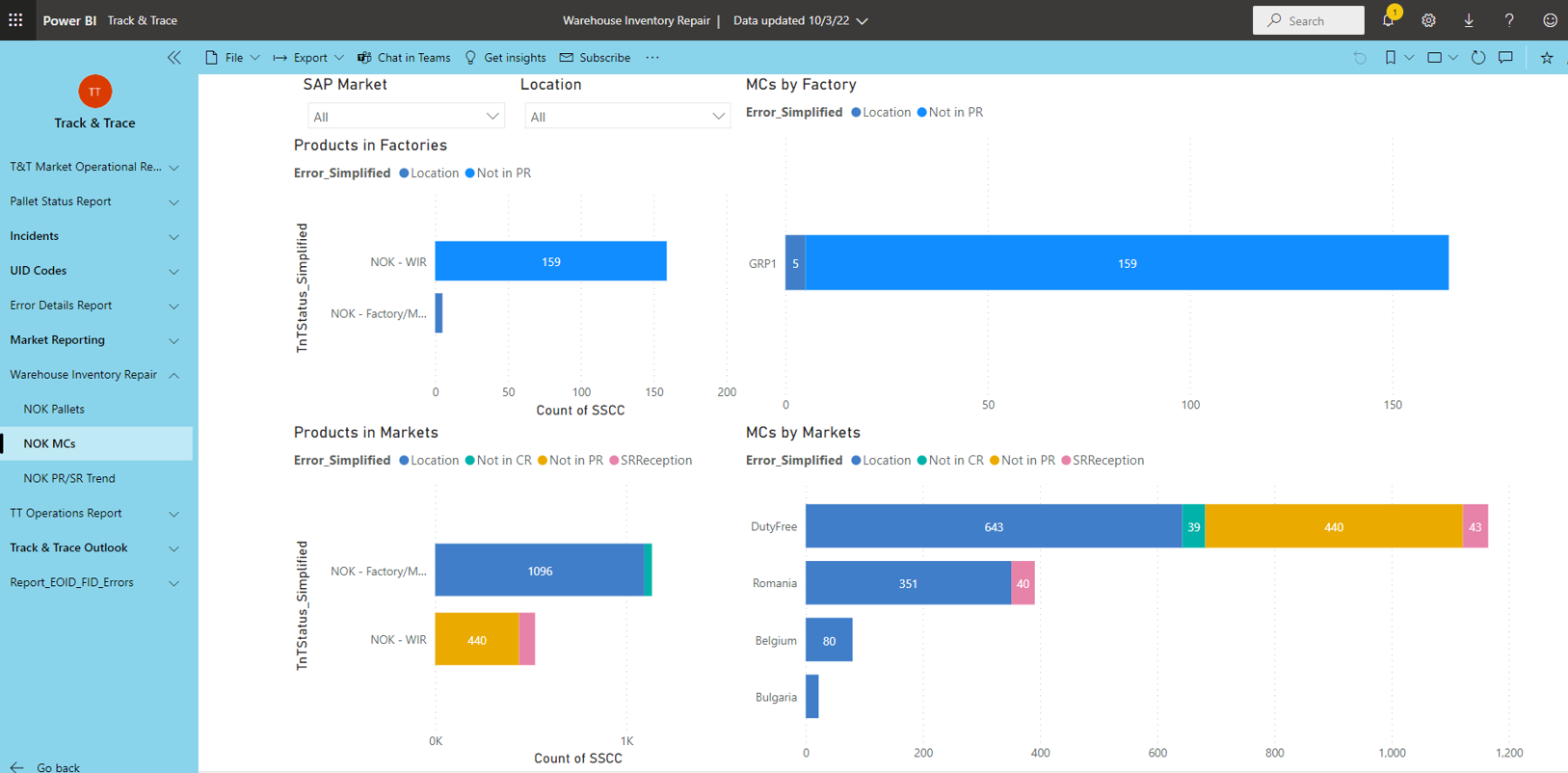
This report has been divided into two categories as factory and market. WIR Team does not perform any repairing if there is no demand from the market side. If the count for the mastercases that need repairing is too high, WIR Team sends an informational email to raise the issue to responsible team. Mostly this results in guiding the colleagues on the market side more than performing any repairing on mastercase level.
If there is an error on SR side, then WIR team proceeds into more detailed investigation on these mastercases.
NOK Pallets report that shows the overall status on pallet level:
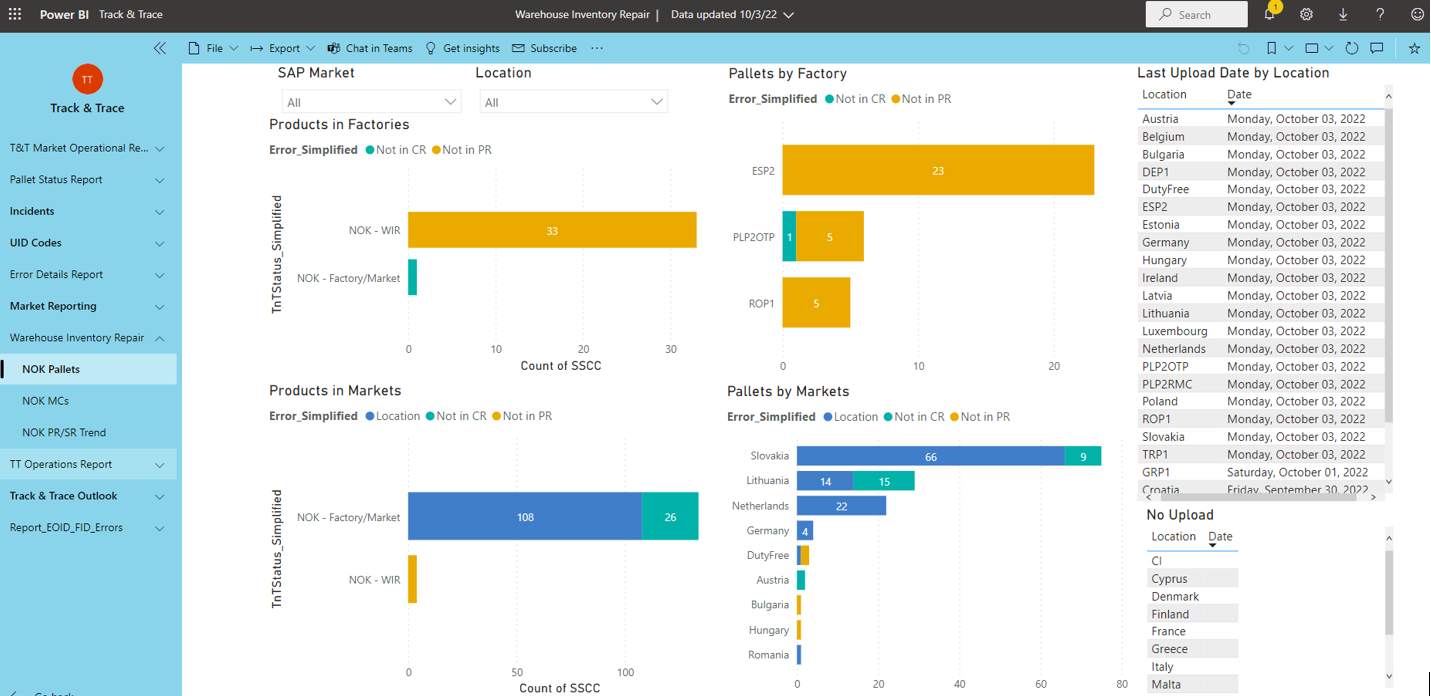
WIR Team mainly focuses on pallet repairing. There should be no errors on SR side, not even for one pallet. In such cases, it gets investigated thoroughly to find the root cause and eliminate.
WIR Team frequently checks the pallets by factory section of this report and repairs the pallets shown under the NOK-WIR status immediately without waiting for confirmation from factory side or informing. This is one of the WIR Team’s routine tasks.
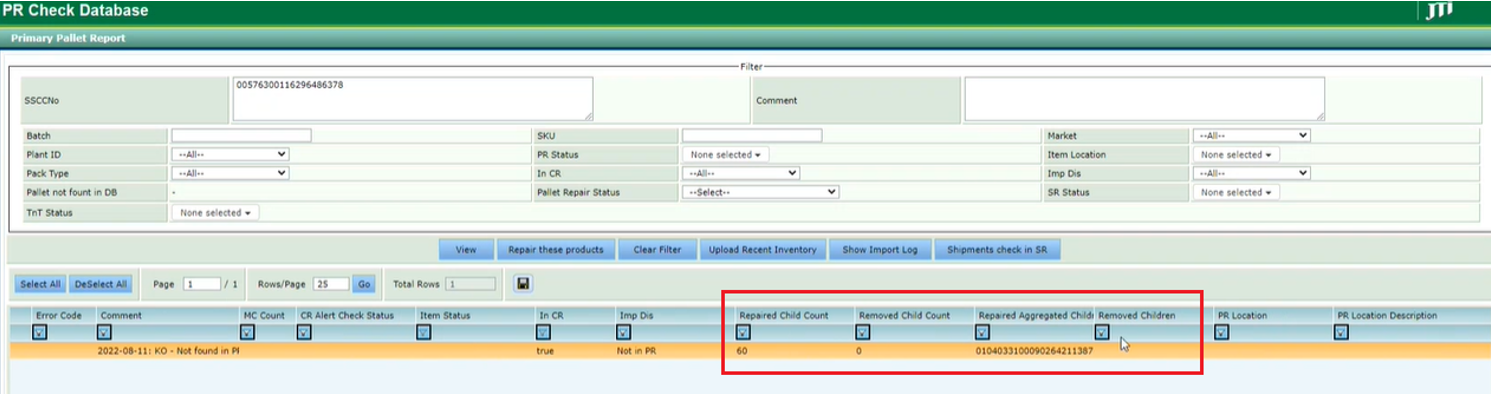
After the pallet repair process is completed, there are virtually missing items from those repaired pallets. To complete the repairing process, these extracted items during the pallet repair should also be taken out physically out of these pallets. The colleagues in the factory must check which items should be taken out of the pallet via the PR Check Tool before using the repaired products.
You can check the screenshot below as an example. For the pallet in the screenshot, the “Removed Child Count” is zero. So, there is no need for taking out any items physically. But if the “Removed Child Count” was 2, you can see the items you need to physically take out of the pallet under the “Removed Children” section.
There is only one exception: Romania factory handles their repair processes themselves. WIR Team only provides analysis when there is a demand, otherwise do not partake in repairing. The responsible colleagues on Romanian factory performs the repairing according to WIR Team’s analysis.
In PR Check database, implicit products’ statuses are defined as PR NOT-OK or PR-KO. But we do not see these pallets under this NOK pallets list. Since the implicit disaggregation is caused by taking out a mastercase from a pallet, and the pallet cease to exist after this, there is no need for this data to be added into the Power BI report. So in short, we can say that the NOK pallets report is a refined version compared to the PR Check Tool’s results.
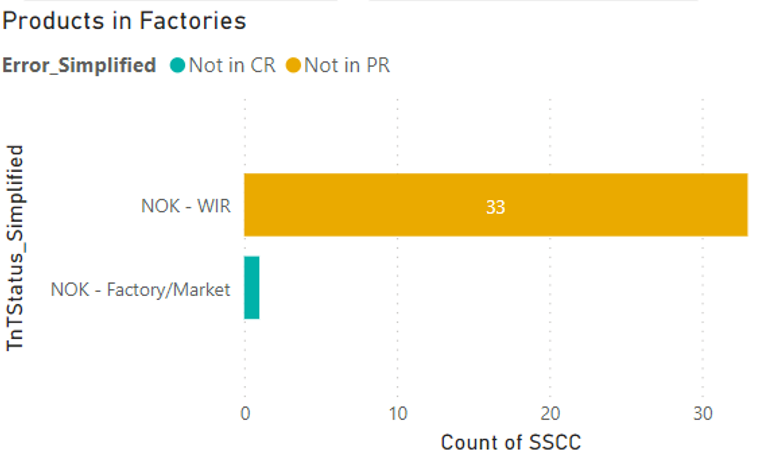
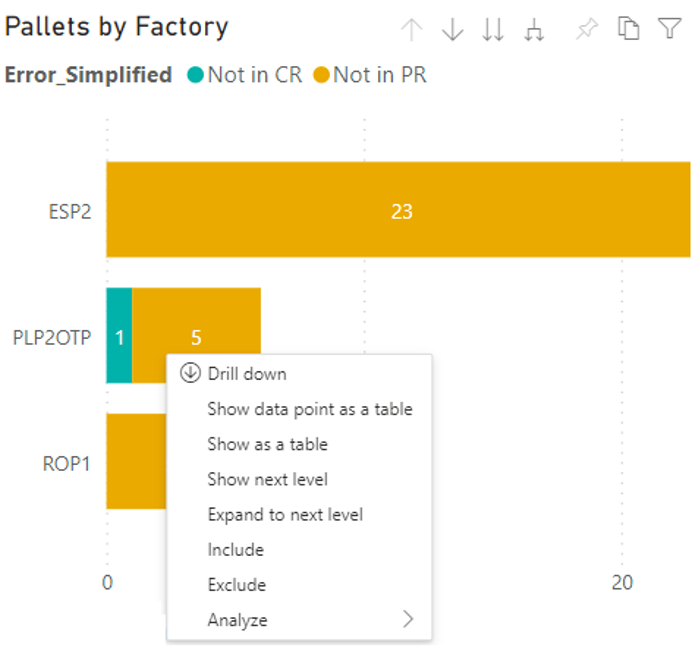
If you right click on the column that you need to get details of the pallets that need repairing in the “Pallets by Factory” chart at the NOK Pallets report, you can click on the “Show data point as a table” option to get detailed report.
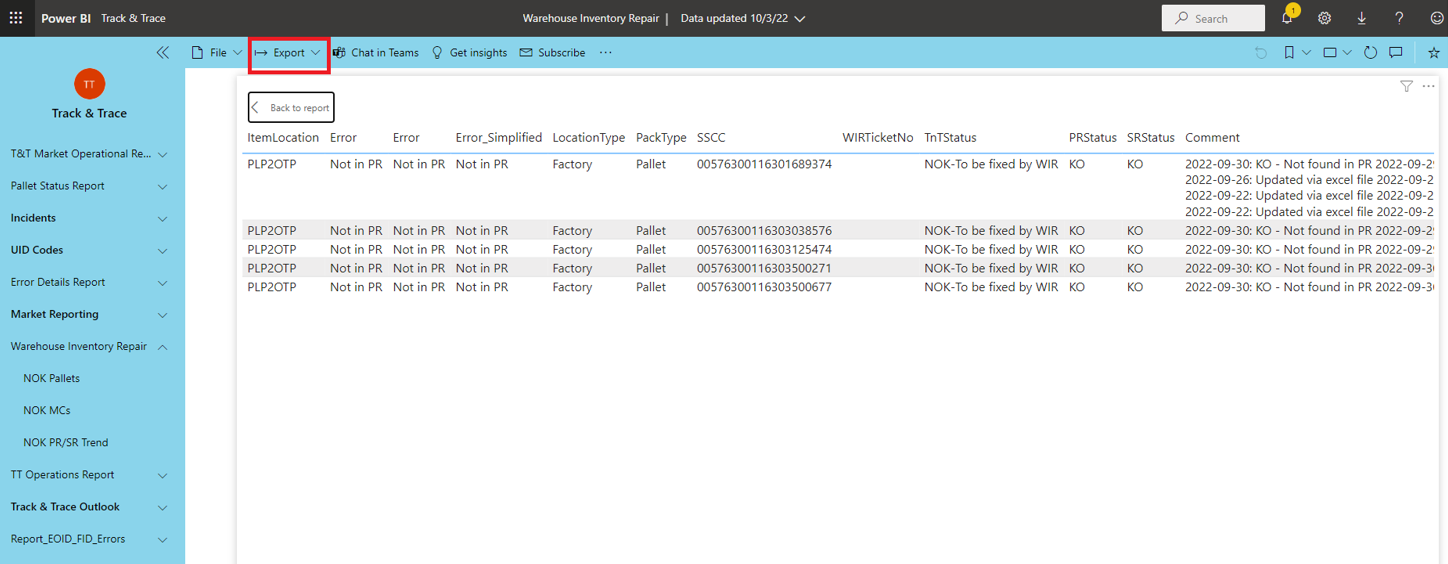
As a result, you can get the detailed table of the pallets that need repairing for the selected country before starting the repair process. You will also have the option to export this data as excel, powerpoint or pdf format.
At the end of the repairing process, if the pallet is not repairable, WIR Team send an email to inform the factory on this issue.
WIR Team do not repair the products that have issues on bundle level, such as taking out a bundle from a mastercase to repair. If a mastercase is getting repaired, the bundles inside must be repairable without breaking the integrity of the mastercase. Only mastercases can be taken out of a pallet if they are unrepairable. Mastercases should be always keep intact. Market side does not accept mastercases with meagre bundles. Factories might rework these problematic mastercases with unrepairable bundles if they want on their side.
Unrepairable product scenarios:
- Let’s assume that there is a pallet with only one mastercase and this mastercase has only one unrepairable bundle. Since there will be nothing left if we take out the mastercase out of this pallet, it’s fair to say that this pallet is unrepairable.
- Let’s assume that a factory has sent a pallet to a market, and the market has received and used this pallet. There might be also implicit disaggregation issues present and this pallets status is “Not in PR” in the NOK pallets Power BI report. If the market side tries to perform aggregation, they will face location mismatch error. The products inside the pallet is not in that location anymore. In this case, this pallet is unrepairable.
In cases such as above, WIR Team informs factories and warehouses with an email to relevant colleagues. WIR Team points out the problematic products in the respective location have been investigated and they are unrepairable whilst adding their analysis results and reasoning, since the location that holds the product cannot use it anymore.
In short, WIR Team informs factories and warehouses on their problematic products and gives guidance on how to proceed.
There is no list of responsible colleagues on each location right now. It’s a work in progress.
Besides the mentioned repair types and analysis, WIR Team works on products sent from a warehouse to a location which ships the product to another location, prior to sending a reception message. In this case, the product’s location will be virtually seen as if it’s in the warehouse. Further shipments will not be allowed due to location mismatch error by the T&T system without sending a reception message first. These types of issues are mostly in WIR Team’s scope when there is a massive load of products, since the failure is due to wrongfully applied process.
For “Not in CR” errors, WIR Team can check the products via GLA database only to give guidance, since such products do not exist in the corporate repository. WIR Team can trigger the process via GLA and try to send the products from to CR or TPM.
Still, such issues are not in scope of the WIR Team. Their main responsibility is the “Not in PR” products which WIR Team can intervene in deeply.
NOK-WL pallets at the NOK pallets table in the Power BI report are also one of the main responsibilities of the WIR Team, not matter how little is their count. WIR Team analyse these pallets prior to creating a ticket on WL side. Afterwards, they contact WL Team to assist on determining the reason why these pallets are not in SR while they exist in PR. Repairing these pallets is not WIR Teams responsibility.
8 Backlog & Process Improvement Plans
- WIR Team informs factories and warehouses on their problematic products and gives guidance on how to proceed when they are not responsible of repairing. Currently, there is no list of responsible colleagues to contact on each location. It’s a planned work in progress.
- WIR Team will create new email groups as distribution lists for each location separately. This way, contacting the respective colleagues will be much simplified and sustainable, even the related colleague changes.
9 Document control
9.1 Contact person
Questions and feedback regarding this standard should be submitted to Huseyin Cakmakliogullari and Ogulcan Firat
9.2 Document review
The document will be reviewed in case new KPI metrics will be added or deleted on the global level.
9.3 Revision History
| Version | Effective date | Purpose of change | Author |
|---|---|---|---|
| 1 | 20-Jun-2022 | First version of the document | Seval Altug |
10 References
ANY QUESTIONS?